Ticket templates are used to quickly and consistently record recurring processes with predefined content. They help speed up ticket creation and improve the quality of the information recorded.
Templates are particularly suitable for standardized processes where specific details, descriptive texts, or other content are regularly required in the same or a similar form. This simplifies the creation of new tickets and establishes a consistent foundation for comparable issues.
Ticket templates can be used both for internal ticket creation and in the Self Service Portal. In the Self Service Portal, templates can be made available as standard requests and thus used as an additional, flexible service catalog. End users can use prepared templates to submit recurring requests without having to re-enter all the information. Templates approved for Self Service are particularly suitable for standardized requests and clearly defined processes.
Automatic processing can be enabled for ticket templates. In this case, the system attempts to move the ticket directly to the next stage of processing. If approval is required for the process, the approval process is initiated automatically and continues once approval is granted. If required fields are missing, the ticket remains in the “New” status and can be completed later.
Ticket templates are therefore suitable not only for structured ticket entry but also for more standardized processes with minimal manual effort.
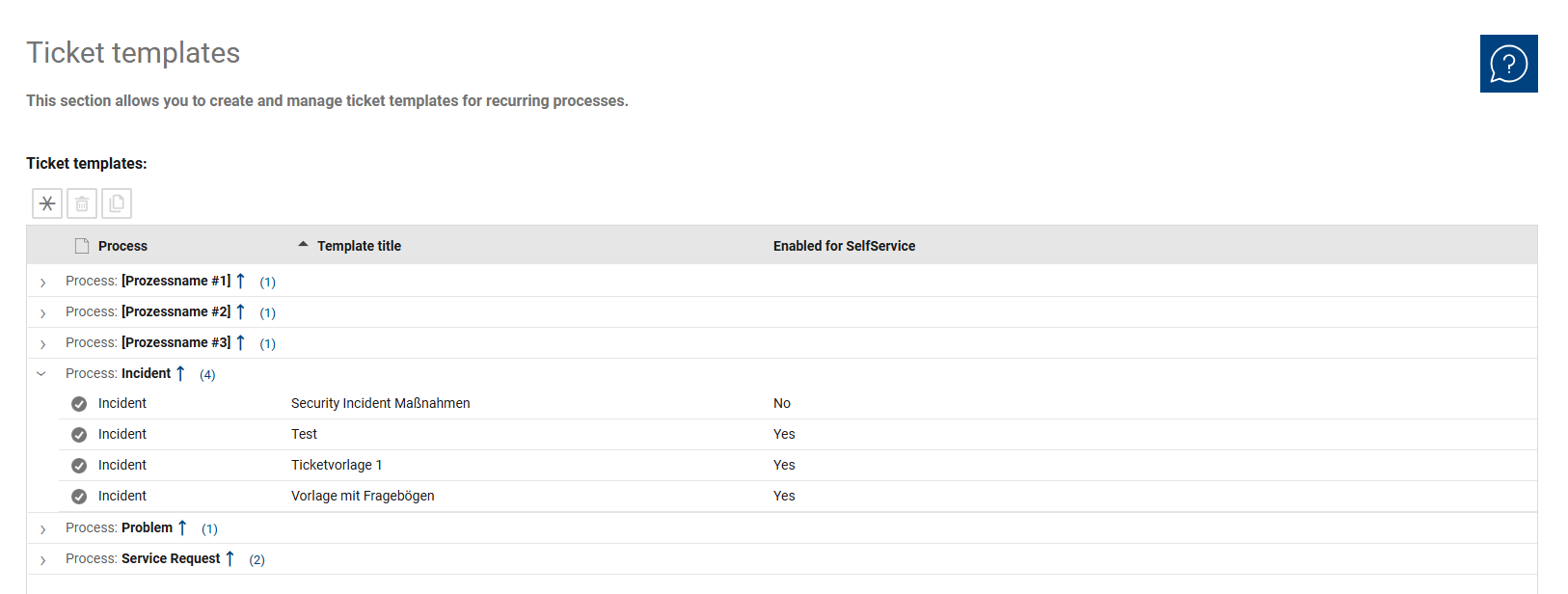
The overview is used for the centralized management of all existing ticket templates. Here, you can organize templates by subject matter, review existing templates, and open them for further editing.
The existing entries are organized by process, so that templates are grouped within their respective areas of application. This makes it easy to quickly find the right template for a specific process or ticket type. This makes navigation easier, especially when dealing with a large number of templates.
Additionally, the overview indicates whether a template is approved for self-service. As a result, templates can not only be used internally for ticket creation but can also be made available to end users in the self-service portal as needed.
The overview thus serves as a central starting point for the structured management and provision of reusable ticket templates.
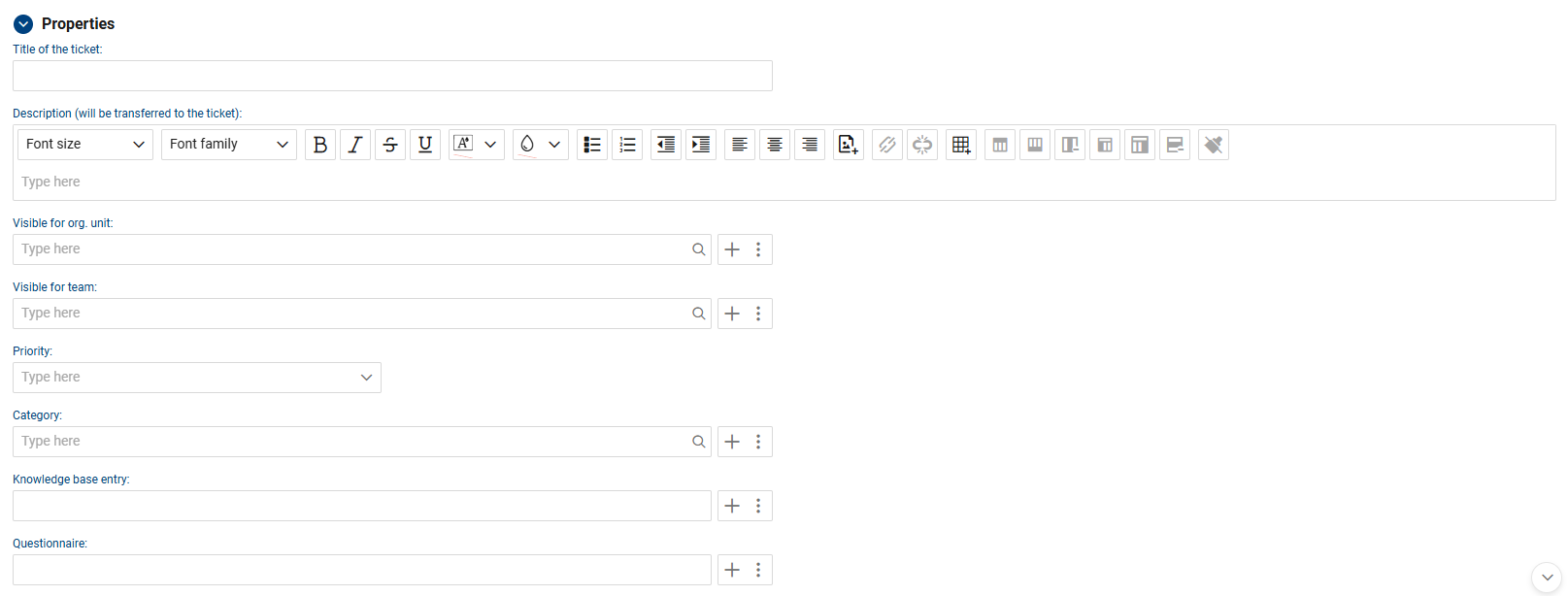
In the detail view of a ticket template, you maintain the content and settings that are relevant for the template’s future use. Here, you specify the ticket type to which the template applies, which ticket information is pre-filled, and under what conditions the template can be used.
You can also manage the technical specifications for the resulting ticket, such as the title, description, categorization, or other assignments.
Depending on the use case, additional content can be stored in a ticket template. This includes, for example, knowledge base entries, questionnaires, task packages, or relevant standard assets.
A linked questionnaire can be suggested during ticket creation and launched directly in the Self Service Portal. Task packages can be used to provide recurring tasks in a fixed order. Additionally, defined assets can be automatically included in the ticket as affected assets.
The detail view thus serves as the central area for configuring all technical content and settings of a ticket template.
The following fields and functions are available for each ticket template:
•Template Title: Enter the name of the ticket template here. The title serves to uniquely identify the template and quickly identify it when selecting it.
•Enabled for Self-Service: Use this setting to specify whether the template is available in the self-service portal. Enabled templates can be used there in the catalog of standard service templates.
•Status: This field controls whether the ticket template is active and available for use. Activated templates are available for selection.
•Valid until: Here you can set an expiration date for the template. Activated ticket templates can be automatically deactivated once this date is reached. After that, they will no longer be available for selection.
•Copy Template: This function allows you to use an existing ticket template as the basis for a new template. This is helpful when similar templates are needed and existing content should be reused.
•Ticket Type: This field specifies the ticket type for which the template is used. This ensures that the template is used in the appropriate context.
•Combination with Item Order: This flag indicates that the template is used in connection with an item order. The provided information does not include a more detailed technical description.
•Automatic Processing: This option enables automatic processing of tickets created using this template. If approvals are required, they are initiated automatically and the process continues once approved. If required fields are missing, the ticket remains in the “New” status.
•Ticket title: Here you enter the title that will be used for the ticket created with the template.
•Description: In this field, you define a description text for the ticket. The text is predefined for ticket creation. If a description text already exists, it is not replaced by the template text.
•Visible to Organizational Unit: Here you can specify for which organizational units the template is available in the self-service portal.
•Visible to Team: This field allows you to further restrict visibility to specific teams.
•Priority: This field pre-sets the priority that should be applied when creating the ticket from the template.
•Category: Here you can specify the category that will be assigned to the ticket when the template is used.
•Knowledge Base Entry: This assignment allows you to link a knowledge base entry to the template so that relevant information is provided in connection with the ticket.
•Questionnaire: Here you can link a questionnaire to the template. When the ticket is created, the questionnaire is suggested and launched directly in the self-service portal.
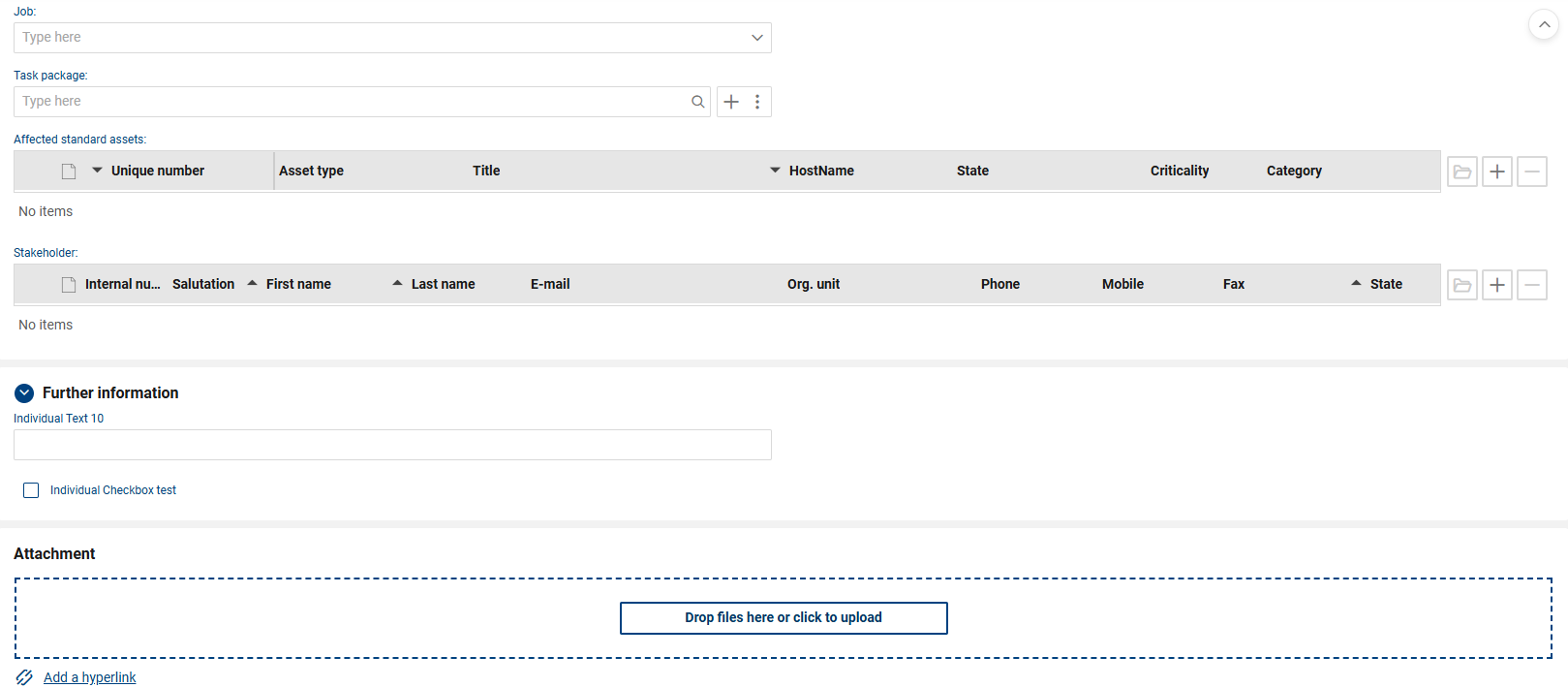
•Job: In this field, you can define a job for the template. Further details are not included in the provided information.
•Task package: Use this field to link a task package to the template. This allows recurring ticket tasks, including their processing order, to be automatically applied.
•Affected Standard Assets: Here you define assets that are automatically included in the ticket as affected assets when the template is used.
•Stakeholders: In this section, you can add additional stakeholders to the template.
•Additional Information: This section contains additional, custom fields used in ticket templates for your organization.
•Attachments: In this section, you can attach files to the ticket template.