Approvals are used to establish binding approvals for tickets and to manage their workflow. They are used when a ticket must first be reviewed and approved before it can be processed. This allows approval processes to be mapped out in a structured manner and ensures that decisions are made by specific, predefined approvers.
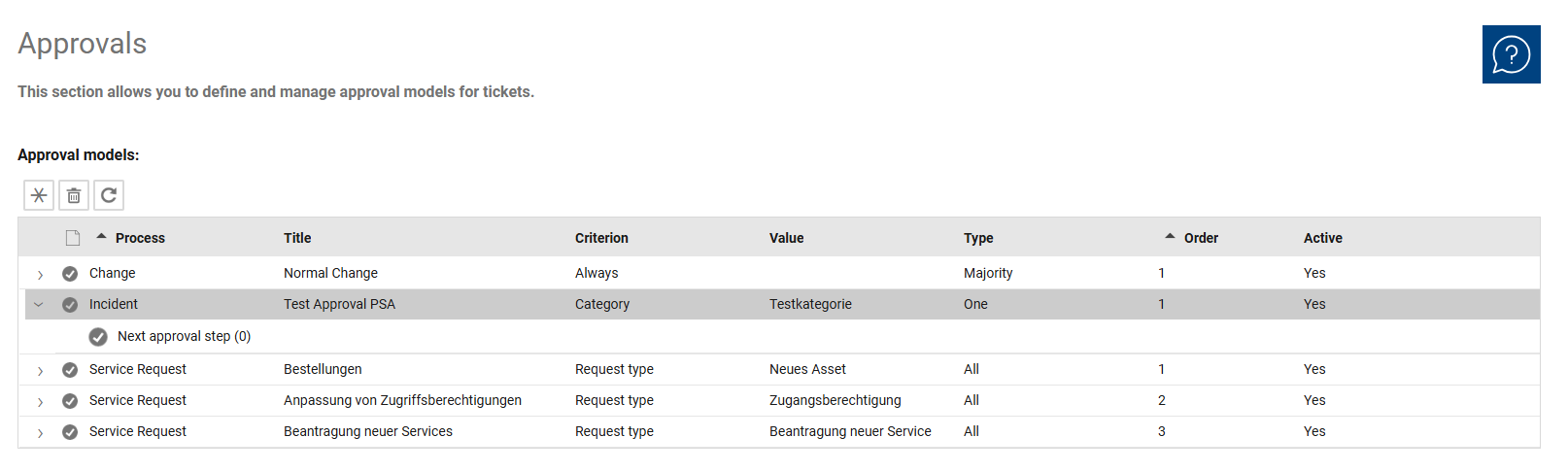
The overview in the “Approvals” section displays all existing approval models. It is used to centrally manage approval rules and quickly determine which process a model applies to, under what conditions it is used, and in what order it is considered.
In the list, different approval models can be compared with one another, for example, in terms of process, criteria, or approval type. This makes the view particularly suitable for reviewing existing models and determining which model is used in which specific scenario. Additionally, it is immediately clear whether a model is active and can therefore be used in live operations.
Approvals are performed before a ticket transitions to the “In Progress” status. One or more approval models can be defined for each ticket type. Additionally, criteria can be used to determine when a specific model is applied. If multiple models apply simultaneously, the model with the lowest priority is used.
Within an approval model, you can specify whether a single approval is sufficient, a majority is required, or all involved approvers must agree. Simple approvals, majority approvals, and approvals requiring the consent of all parties are supported.
Additionally, multi-stage approvals can be set up. In this case, multiple approval steps are executed sequentially. Only after one stage has been approved is the next stage initiated. Once the final stage is complete, the normal workflow resumes.
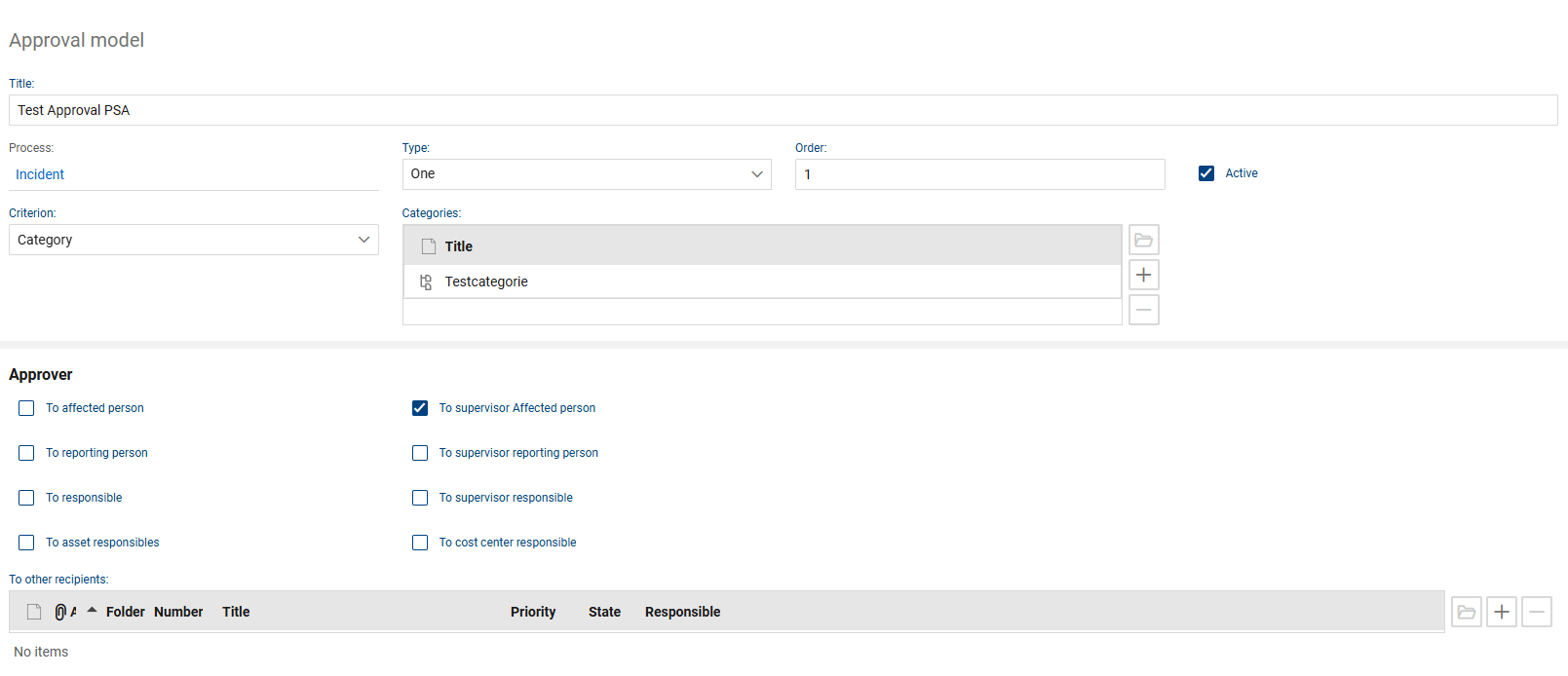
In the open object, you edit the settings of an individual approval model. Here, you specify the model’s name, the process to which it applies, the criteria by which it is selected, and its priority order. Additionally, you define which individuals or recipients are designated as approvers.
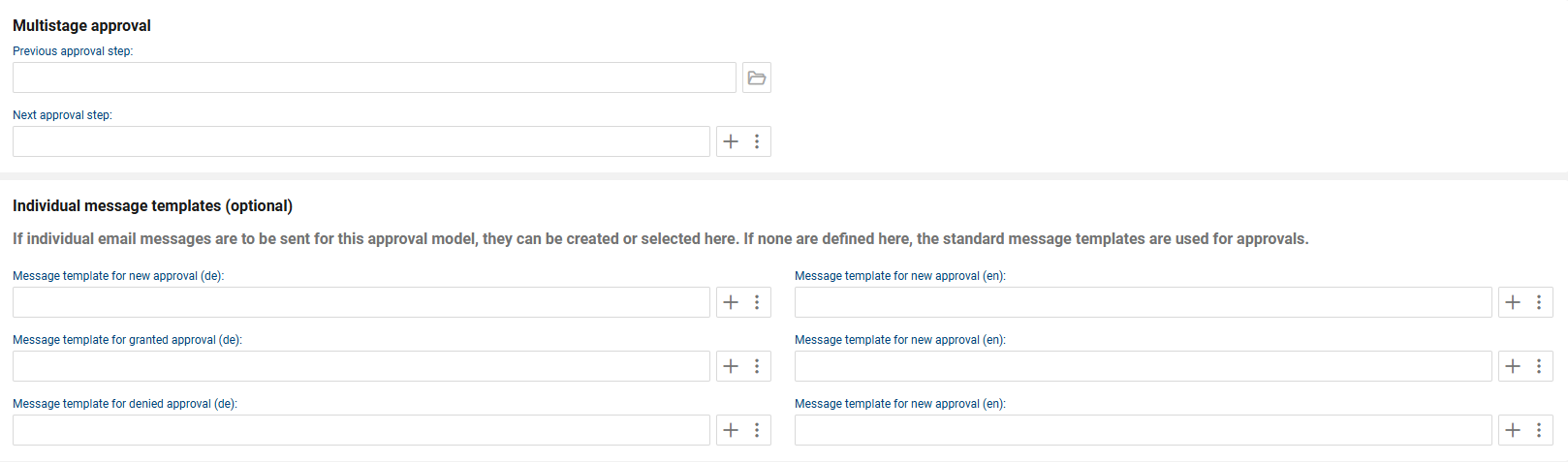
If multiple approval levels are required, they can be linked together in the “Multi-level Approval” section. In addition, custom message templates can be defined for an approval model. These templates are optional and apply to notifications regarding new, granted, or denied approvals. If no custom templates are defined, the system uses the default message templates for approvals.
The detail view thus serves as a central location for the complete configuration of an approval model and the desired approval logic.
Folgende Felder und Funktionen stehen je Genehmigungsmodell zur Verfügung:
•Title: Here you define the name of the approval model. The title is used to uniquely identify the model in the overview.
•Process: This field indicates which ticket process the approval model is used for, such as Change, Incident, or Service Request.
•Type: Here you specify the logic governing the approval process, such as a majority decision, a single approval, or approval by all approvers. This determines whether a single approval is sufficient, a majority is required, or all approvers must agree.
•Priority: Determines the order in which the model is applied. If multiple approval models apply to a ticket, the model with the lowest priority is used according to the default settings.
•Active: Specifies whether the approval model is active and can therefore be used.
•Criteria: Use this field to specify the conditions under which the approval model is applied. Available criteria include Always, Category, Organizational Unit, Priority, RFC Type, Risk, Ticket Template, Asset Type, Job Requiring Approval, and Estimated Effort.
•Approvers: In this section, you specify which recipients or roles are included in the approval process.
•To Affected Person: Includes the affected person as an approver.
•To Reporter: Includes the reporter as an approver.
•To the Person in Charge: Includes the person in charge as an approver.
•To Asset Managers: Includes asset managers in the approval process.
•To the Supervisor of the Affected Person: Includes the supervisor of the affected person.
•To the Supervisor of the Reporter: Includes the supervisor of the person submitting the report.
•To the Supervisor of the Person in Charge: Includes the supervisor of the person in charge.
•To Cost Center Manager: Includes the responsible cost center manager in the approval process.
•To Other Recipients: Additional recipients not covered by the previous options can be added to this list. The list displays the entered recipients along with information such as folder, number, title, priority, status, and responsible party. This allows the entered recipients to be directly tracked.
•Multi-level approval: In this section, you link approval steps together if approvals are to occur sequentially. According to the documentation, multi-level approvals trigger the next level only after the previous one has been approved.
•Previous approval step: Here, you can reference a previous step if the open model is part of an existing approval sequence.
•Next approval step: Here, you can specify a subsequent approval step that will be used after this model has been successfully approved.
•Custom message templates (optional): In this section, you can define your own message templates for the approval model. As indicated in the displayed description, if no definition is provided, the standard message templates for approvals will be used.
•Message template for new approval (German): Here you can define a German-language template for the notification of a new approval.
•Message template for new approval (en): Here you can save an English-language template for the notification of a new approval.
•Message template for granted approval (de): Here you can save a German-language template for the notification of a granted approval.
•Message template for granted approval (en): Here you can save an English-language template for the notification of a granted approval.
•Message template for denied approval (de): Here you can save a German-language template for the notification of a denied approval.
•Message template for denied approval (en): Here you can save an English-language template for notifying the applicant of a denied approval.