Custom fields are used to add additional, freely definable information to tickets. This allows you to capture information that goes beyond the standard ticket fields and is required for specific processes, requirements, or ticket types.
Once activated, custom fields can be used in the respective ticket processes depending on the configuration. Additionally, you can specify for which processes a field is visible, in which processes it is a required field, and at what status a mandatory entry becomes required. You can also control whether a custom field is displayed in the Self Service Portal.
Various field types are available for capturing different types of information. Supported field types include text fields for short entries, checkboxes for yes/no selections, number fields for numerical values, date fields for dates or deadlines, dropdown lists for predefined values, and formattable text fields for multi-line content. This allows additional ticket information to be captured in a structured and traceable manner.
A fixed number of individual fields is available for each field type. Changes to field names do not take effect immediately but are applied after a short delay.
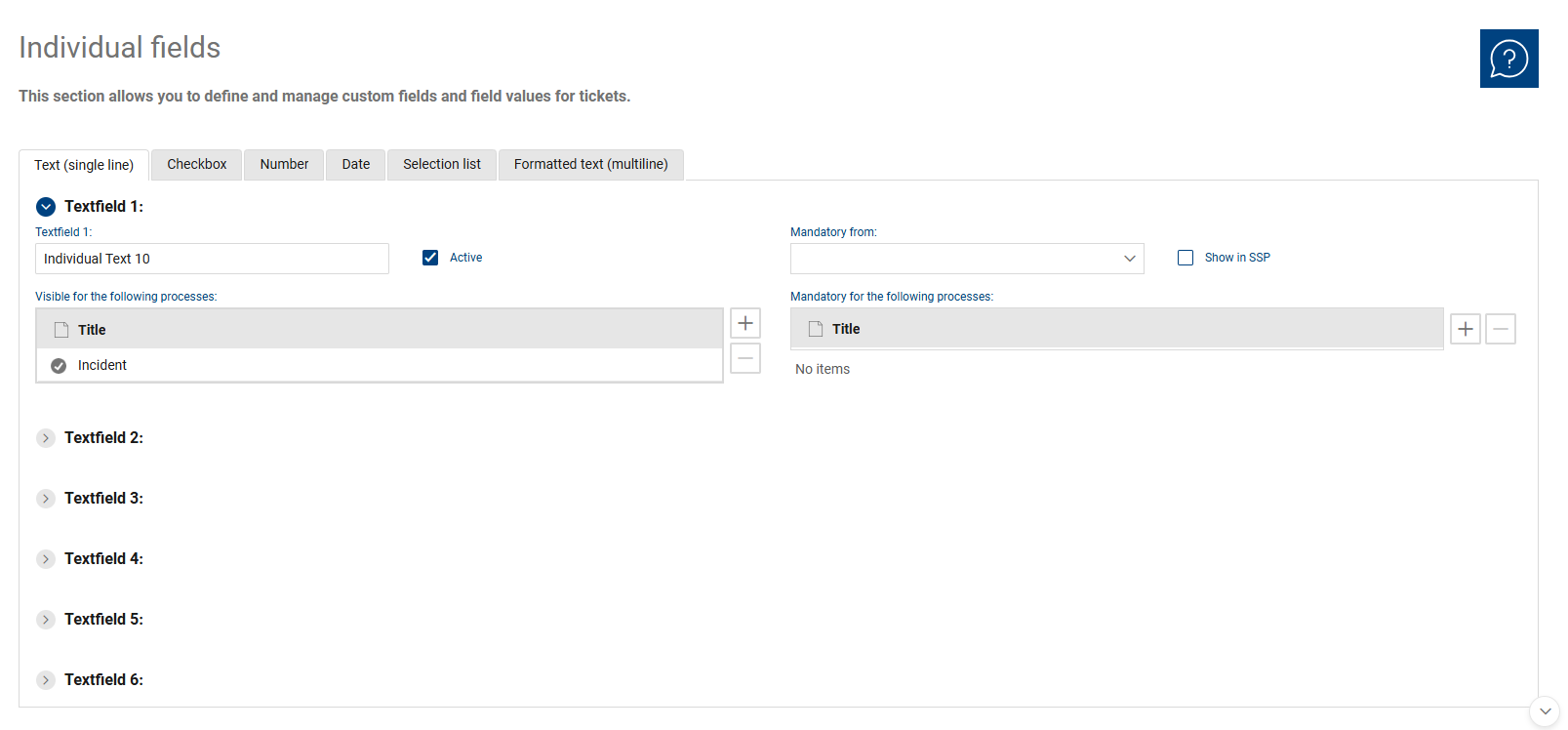
The overview serves as the central configuration area for all custom fields. In the upper section, you can use tabs to switch between the different field types. This allows you to manage each field type separately.
The available field entries are displayed within the selected tab. Each entry represents a separate custom field of the respective type, such as a text field, a checkbox, a numeric field, a date field, a drop-down list field, or a formattable text field.
In a field entry, you maintain the properties of the respective individual field. These include the name, the active status, the display in the Self Service Portal, and the assignment to processes. Additionally, you can specify whether a field is used as a required field in certain processes and from which status the requirement should apply.
Depending on the field type, additional settings are available. For drop-down list fields, this applies in particular to the values that will later be offered for selection in the ticket.
This section thus serves as a central location for creating additional ticket fields by field type, configuring them, assigning them to processes, and making them available for use in the ticket or in the Self Service Portal.
The following tabs are available:
Text (single-line): Use this tab to manage custom text fields for short free-form entries.
Checkbox: Use this tab to manage custom fields for simple yes/no selections.
Number: Use this tab to manage custom number fields for entering numerical values.
Date: Use this tab to manage custom date fields.
Dropdown list: Use this tab to manage custom dropdown fields with predefined values. Within the dropdown fields, you can also maintain the available dropdown values.
Formattable text (multi-line): Use this tab to manage custom multi-line text fields with formatting options.
The following fields and functions are available for each field entry:
•Name of the custom field: Here you can edit the name of the respective custom field. Depending on the tab, this could be the name of a text field, a checkbox, a number field, a date field, a drop-down list field, or a formattable text field. This name will be used later in the ticket.
•Active: Determines whether the respective custom field is used. Only activated fields will subsequently be available, depending on further configuration.
•Required field starting from: Determines the status at which the field should be considered a required field, provided it has been defined as a required field for at least one process.
•Display in SSP: Determines whether the individual field is displayed in the Self Service Portal. This allows you to control whether the field is also included during ticket creation or display in the portal.
•Visible for the following processes: In this section, you specify in which processes the field is displayed. This allows an individual field to be displayed only where it is functionally required.
•Required field for the following processes: In this section, you specify in which processes the field must be filled in. The required field logic is used in conjunction with the “Required field from” setting.
•Dropdown values: This field is available for dropdown list fields. Here you manage the values that will later be offered in the dropdown list.
•Title: Displays the name of an entry, such as an assigned process or a dropdown value.
•Active for dropdown values: For dropdown fields, specifies whether a single dropdown value is actively used.
