Categories are used to organize tickets by subject matter and classify them by content. They support day-to-day processing and also serve as an important foundation for analysis and for quickly locating similar cases.
Categories allow tickets to be grouped by topic. This enables recurring inquiries, issues, or changes to be recorded consistently and analyzed more effectively later on. Additionally, categories can be linked to default responsibilities and ticket templates. When creating a ticket, this allows appropriate responsibilities to be suggested and existing templates to be used for recurring processes. If tasks are stored in a ticket template, they can be automatically transferred to the ticket. Categories can also be optionally set as defaults for specific ticket types.
Categories are also used in the knowledge base. Entries there can be linked to one or more categories so that they can be stored in the appropriate structure and found more quickly.
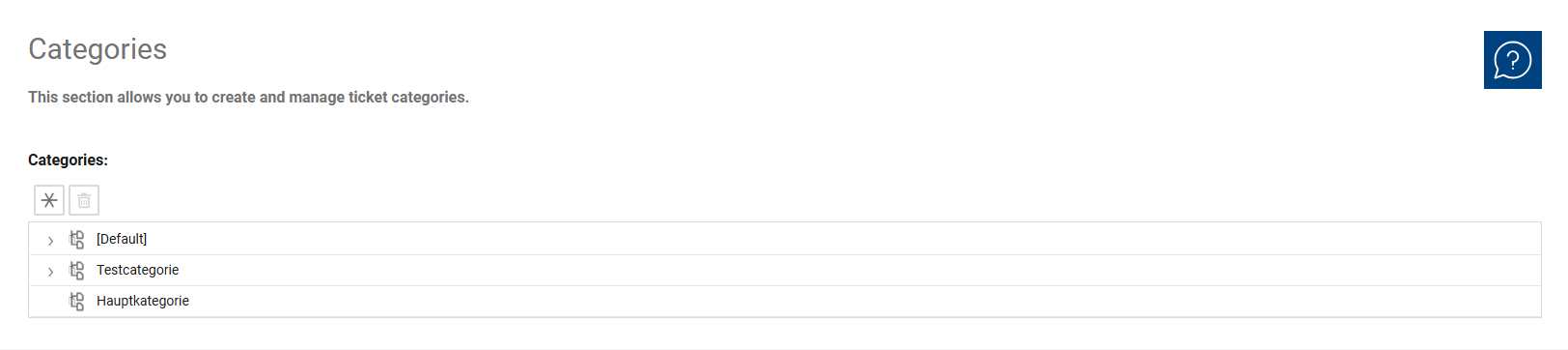
This overview is used to manage all existing ticket categories. Here, you can review existing categories, create new ones, and open existing entries for further editing. Since categories can be organized hierarchically, the overview is suitable both for simply listing individual categories and for displaying parent and subcategories in a structured manner.
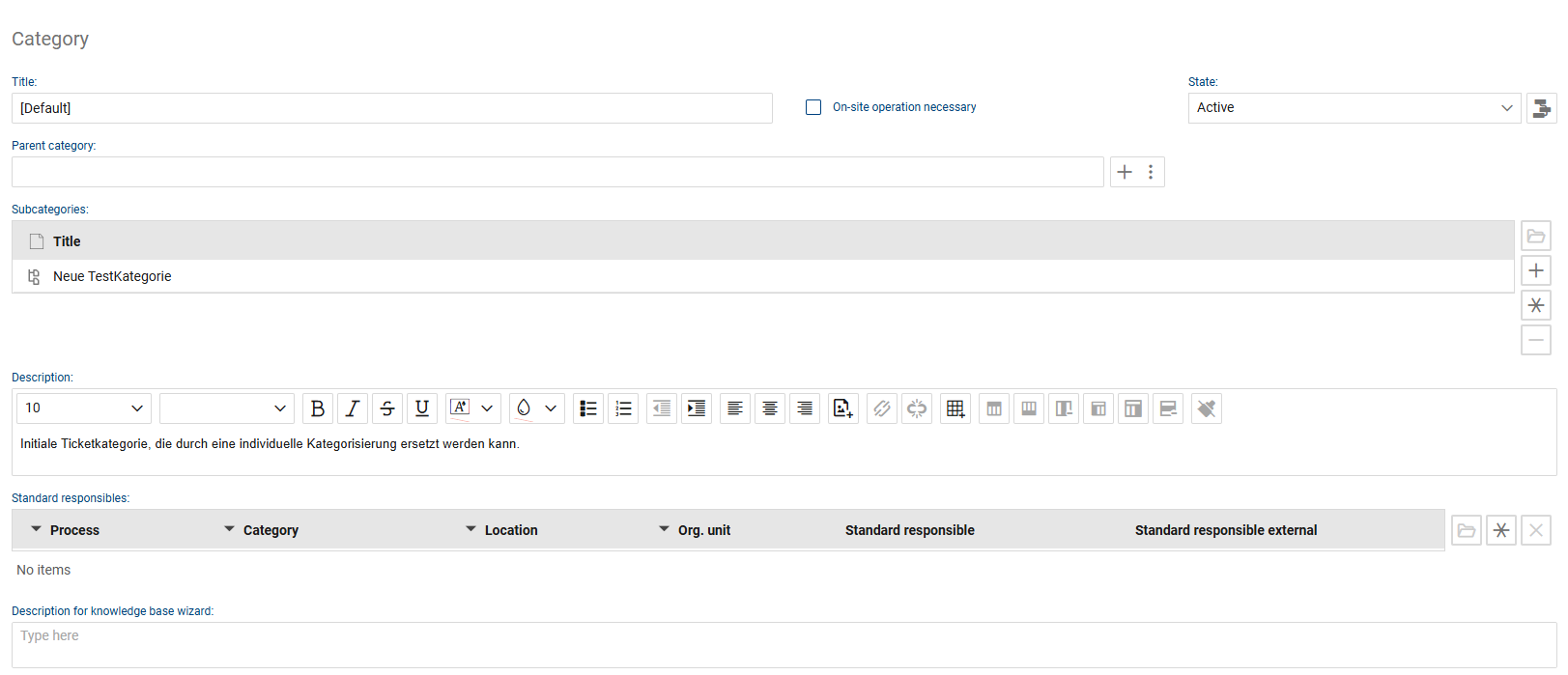
In the detail view, you can manage the content and organizational properties of a category. Here, you define the category’s name, the parent category to which it is assigned, and the child categories that belong to it. Additionally, you can specify whether on-site service is required for this category, the category’s status, and the description to be stored.
You can also assign standard responsibilities so that appropriate roles are suggested when a category is used. Additionally, a separate description text is available for the Knowledge Base Wizard. The detail view thus consolidates all the information required for the technical use and management of a category.
The following fields and functions are available for each category:
•Title: Here you can enter the name of the category. The title is used to identify the category clearly and unambiguously.
•On-site deployment required: Use this option to specify whether the category is used for processes that require on-site deployment.
•Status: This field determines the current status of the category. It allows you to control whether a category is actively in use.
•Parent Category: Here you assign the category to an existing category structure. This allows you to link main and subcategories functionally.
•Subcategories: In this section, you manage categories that are subordinate to the currently open category. This allows you to build and maintain multi-level category structures.
•Description: In this field, you can enter a more detailed description of the category’s content. The description helps to clearly document the category’s intended use and functional scope.
•Default Responsibilities: In this section, you assign default responsibilities to the category. This assignment serves as the basis for automatically applying a suggested responsibility when a category is selected, or for manually adjusting it as needed.
•Description for Knowledge Base Wizard: Here you can enter a description that will be used in connection with the Knowledge Base Wizard. This provides a specific description for this use case in addition to the general description.