In this section, you define how the form is displayed for different ticket types.
This allows the view to be customized depending on the use case: Some ticket types contain more information and features, while others are intentionally displayed in a more streamlined manner. The help section also notes that names and visible content may vary depending on the configuration. Therefore, visible content, labels, and available features may differ depending on the configuration.
The overview is structured as a matrix for configuring the display options for each ticket type. Each row represents a ticket type whose form display can be configured separately. The columns contain the display options for sections and functions of the ticket form. For each display option, you specify whether it is enabled or disabled for the respective ticket type. This allows you to precisely control the available sections and functions for each ticket type. The description of the section aligns with the goal of showing or hiding optional content per process. This includes sections such as History, SLA Times, Time Tracking, Ticket Relationships, or functions related to the knowledge base.
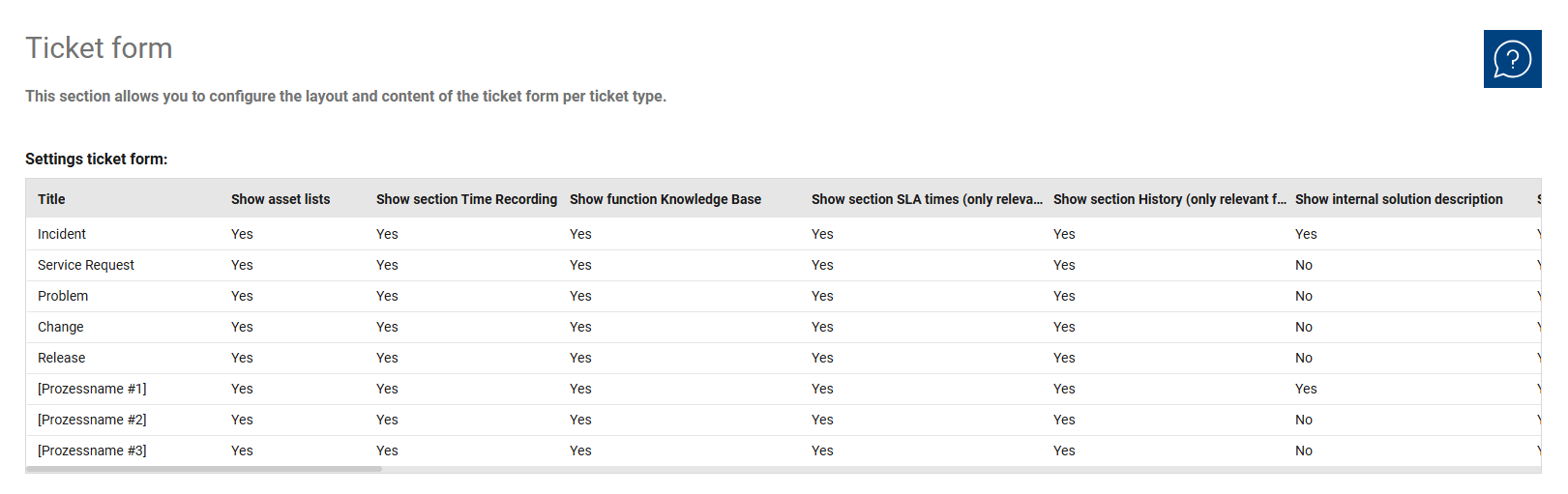
This overview is used to manage the display options for existing ticket types. The columns contain configurable fields, functions, and actions for the ticket form. Changes are made directly in the list. Changes are made directly in the respective table cell.
In addition, the display options can also be viewed in logically grouped sections in the “Ticket Form” tab of the object form for each ticket type.
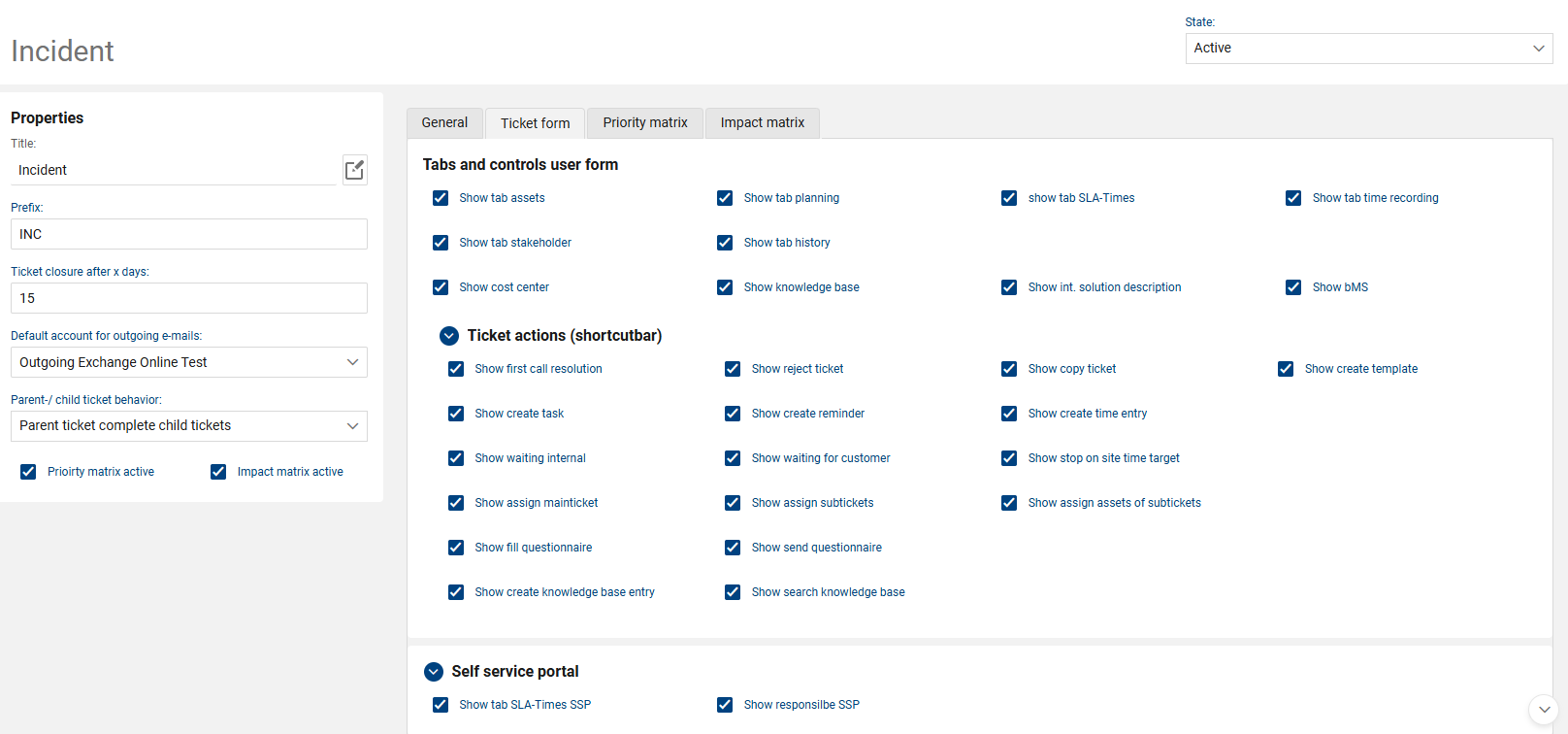
The following fields and functions are available for each ticket type:
•Title: Displays the name of the ticket type to which the form configuration applies.
•Show Asset Lists: Determines whether asset lists are displayed in the ticket form.
•Show Time Entry Section: Determines whether the time entry section is visible in the ticket form. The time entry section is a separate section of the ticket. Times can be recorded directly in the ticket there, for example, using minute values or the Record Time Entry function.
•Show Knowledge Base Function: Controls whether the knowledge base function is displayed in the ticket form.
•Show SLA Times Section: Specifies whether the SLA times are displayed in the form. The SLA times are provided as a separate ticket section.
•Show History Section: Determines whether the history is visible in the ticket form. The history is also available as a separate ticket section.
•Show Internal Solution Description: Determines whether the internal solution description is displayed in the form.
•Show Quick Message: Controls whether the quick message feature is visible in the ticket form.
•Show Cost Center: Determines whether the cost center is displayed in the ticket form.
•Show Stakeholders: Specifies whether the stakeholders section is displayed.
•Show Planning Section: Controls the visibility of the planning section in the ticket form. The planning section is also available as a separate ticket section in the standard form.
•Show SLA Times (SSP): Determines whether SLA times are displayed in the SSP context.
•Show Assignee in SSP: Determines whether the assignee is displayed in the SSP.
•Show Message Options: Controls whether message options are visible in the ticket form. The standard form includes a dedicated section for this purpose. Additionally, there are settings that allow you to control how messages are displayed for each ticket type.
•Show Assets from Subtickets: Determines whether assets from subtickets are displayed.
•Show Create Task: Controls whether the "Create task" action is available in the shortcut bar of the ticket form. The "Create task" action opens the entry form for a new task related to the ticket. This setting has no effect on the visibility of the "Tasks" tab.
•Show Create Reminder: Determines whether the function to create a reminder is displayed.
•Show Fill Out Questionnaire: Specifies whether a questionnaire can be filled out from within the ticket. Questionnaires are included in the standard form as a separate ticket section.
•Show Send Questionnaire: Controls whether a questionnaire can be sent from within the ticket.
•Show Assign to Parent Ticket: Determines whether a ticket can be assigned to a parent ticket. Ticket relationships are available in the ticket form as a separate section. Parent and child tickets can also be displayed there.
•Show “Create KB Article”: Determines whether a knowledge base article can be created directly from the ticket. This action is available when the ticket is in the “Resolved” status. A new knowledge base entry is opened, and the solution text from the ticket is automatically copied.
•Show Quick Solution: Controls whether the Quick Solution feature or section is visible. The Quick Solution quick action is used to quickly resolve a ticket immediately after it is created. This displays the Resolution section.
•Show Assign Sub-Tickets: Specifies whether sub-tickets can be assigned. This feature is also part of the Ticket Relationships section.
•Show Reject Ticket: Determines whether the function to reject a ticket is available in the form.
•Show Copy Ticket: Determines whether tickets can be copied from the form. When copying, a new ticket is created based on the current ticket. The ticket type, selected ticket template, service, category, and description are copied over.
•Show Create Template: Controls whether a template can be created from the ticket. This feature is available for tickets in the Resolved or Closed status. A new ticket template is generated and automatically populated with values from the ticket.
•Show “Stop On-Site Target”: Determines whether the function to stop an on-site time target is displayed. If an on-site time target is included in the SLA, it can be stopped manually using the corresponding action.
•Show Waiting for Customer: Determines whether the corresponding function or status option is visible. The ticket header displays whether a ticket is in the status Waiting for Customer, SLA Stopped.
•Show Waiting: Controls whether the Waiting function or status option is displayed.
•Show Search Knowledge Base: Specifies whether the knowledge base search is available in the ticket form. The Search Knowledge Base action opens the knowledge base directly. A selected entry can then be linked to the ticket.
•Create time entry: Determines whether a time entry can be created in the ticket form. This action opens the form directly for entering a new time entry related to the ticket.
•Show bMS: Specifies whether the baramundi section is displayed in the ticket form.